Front Desk At a Glance
This page is the daily playbook for reception staff. It follows the same order as a normal guest journey: prepare the day, confirm the booking, verify identity, check in, control the folio, check out, and hand over exceptions.
Daily Front Desk Flow
The safest way to train staff is to follow the guest journey from reservation to departure. Use this order during live operation and during training.
Hotel / Bookings.Arrivals Today and KYC status before the guest arrives.In House and Folios during the guest stay.Departures Today and follow up unpaid balances.1. Start with the Hotel Dashboard
Menu pathHotel / Dashboard
Open the dashboard at the beginning of the shift. It gives reception a single operational picture: arrivals, departures, in-house guests, rooms to clean, maintenance, unpaid folios, and overdue amounts.
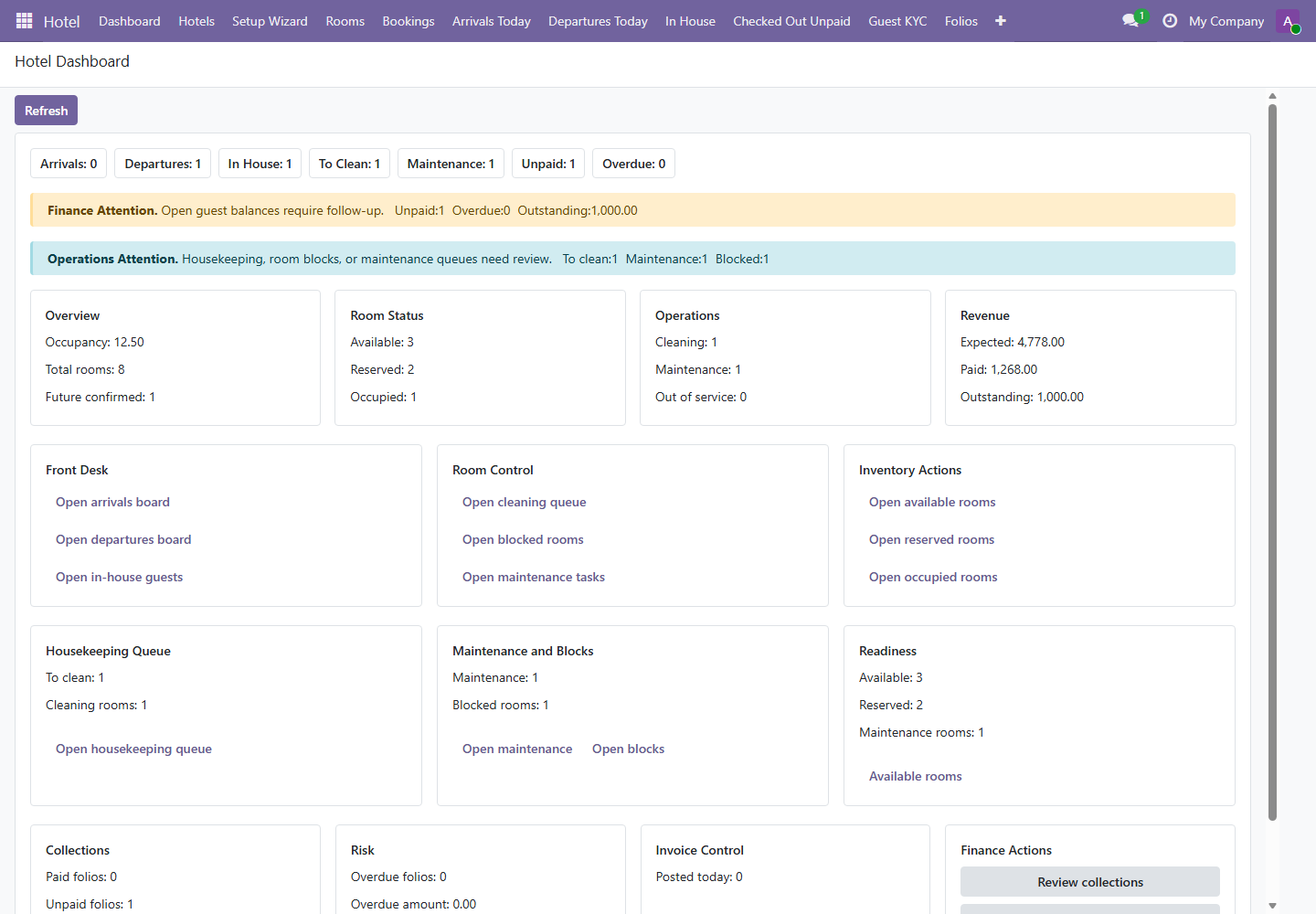
- 1Use the top count buttons to identify the workload for the shift: arrivals, departures, in-house guests, room cleaning, and unpaid balances.
- 2Finance Attention highlights balances that need collection or follow-up before checkout or shift close.
- 3Operations Attention highlights housekeeping, room blocks, and maintenance queues that can affect room readiness.
2. Create or Review a Booking
Menu pathHotel / Bookings
Use this screen for walk-in bookings, telephone bookings, travel agent bookings, and booking review before arrival. Every booking should have a guest, room, check-in date, checkout date, payment policy, and KYC status.
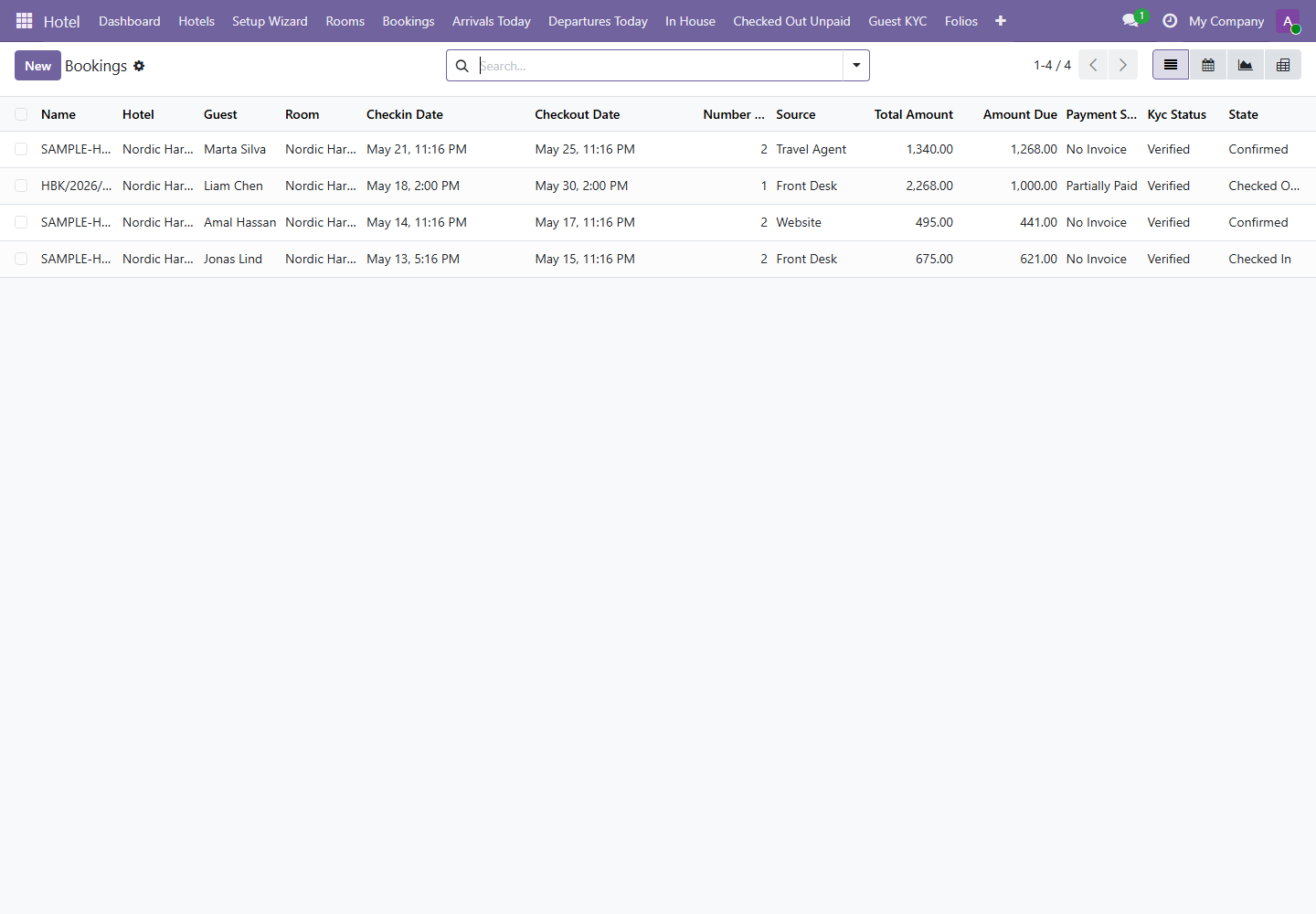
- Click New to create a reservation, or open an existing row to review a booking.
- Select the hotel, guest, room, check-in date, checkout date, and number of guests.
- Confirm the booking source: Front Desk, Website, Travel Agent, or Corporate.
- Select the payment policy: Pay Later, Deposit Required, or Full Prepayment.
- Review the generated room charge under the Charges tab.
- Click Confirm when the booking is ready.
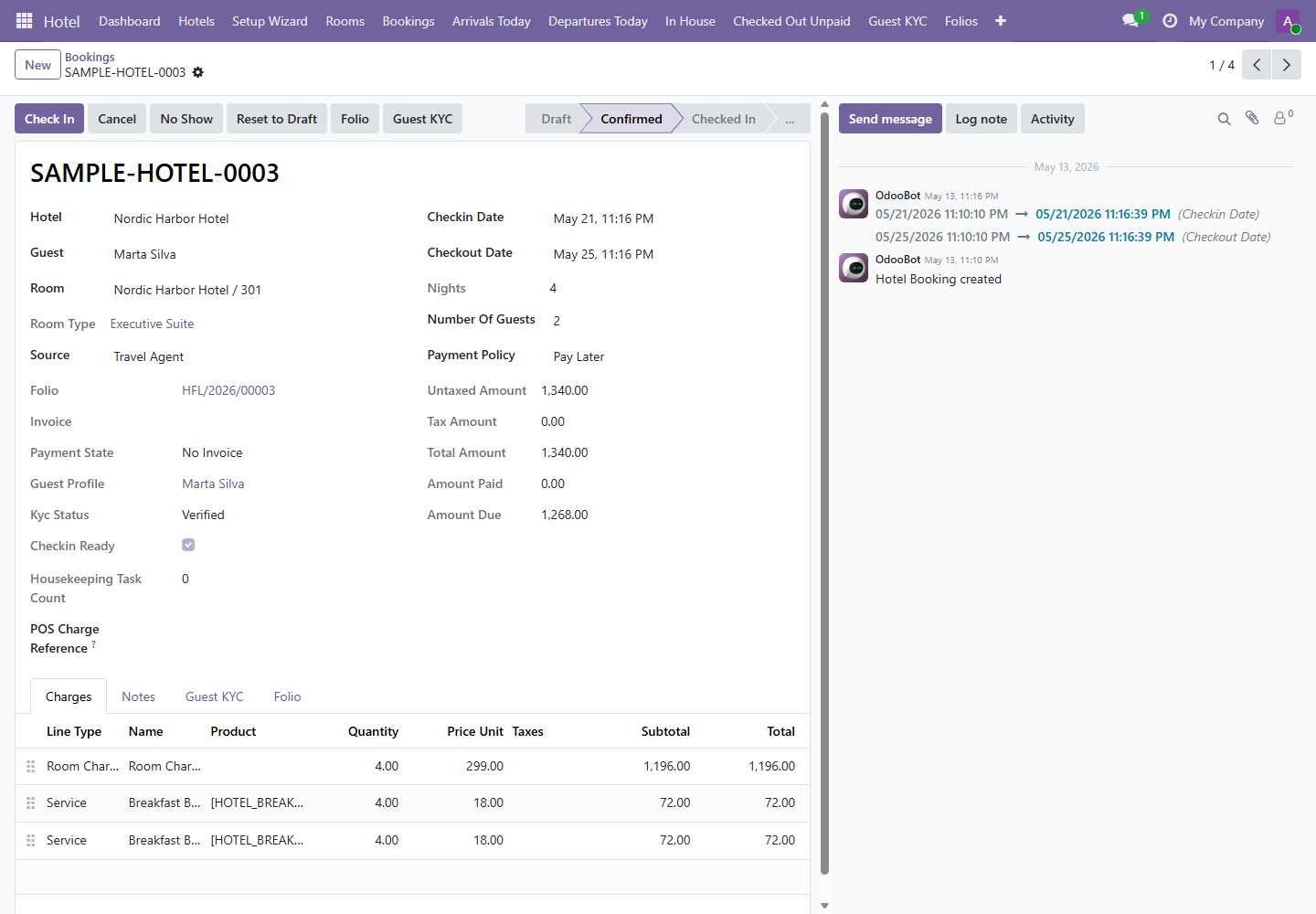
| Field or Button | Meaning | Staff Action |
|---|---|---|
Confirm | Moves a draft booking into a confirmed reservation. | Use after details, room, and dates are correct. |
Check In | Starts the stay and marks the room occupied. | Use only when KYC is ready and the guest has arrived. |
Folio | Opens the operational billing record. | Use to review room charges, service charges, invoices, and payment. |
Guest KYC | Opens the guest verification profile. | Use before check-in if KYC is missing or not verified. |
Payment State | Shows whether the folio is paid, partially paid, unpaid, or has no invoice. | Review before check-in and checkout. |
3. Prepare Arrivals Today
Menu pathHotel / Arrivals Today
This board shows bookings expected to arrive today. Reception should review it in the morning and again before peak arrival time.
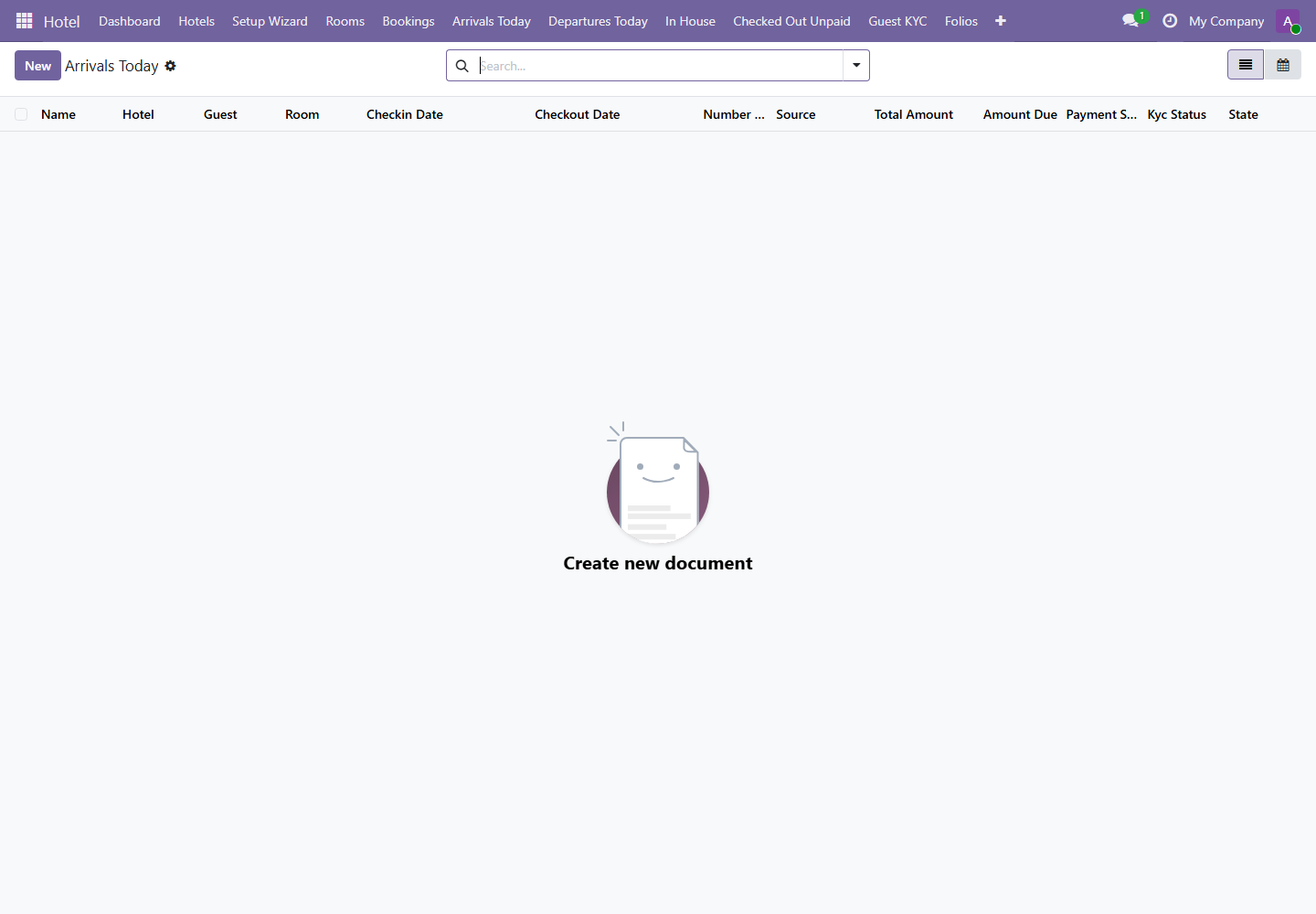
- Open each arrival and check the assigned room.
- Confirm the guest KYC status is verified and check-in ready.
- Review payment state and deposit requirements.
- Coordinate with housekeeping if the room is not ready.
- Resolve issues before the guest reaches the front desk where possible.
4. Complete Guest KYC
Menu pathHotel / Guest KYC
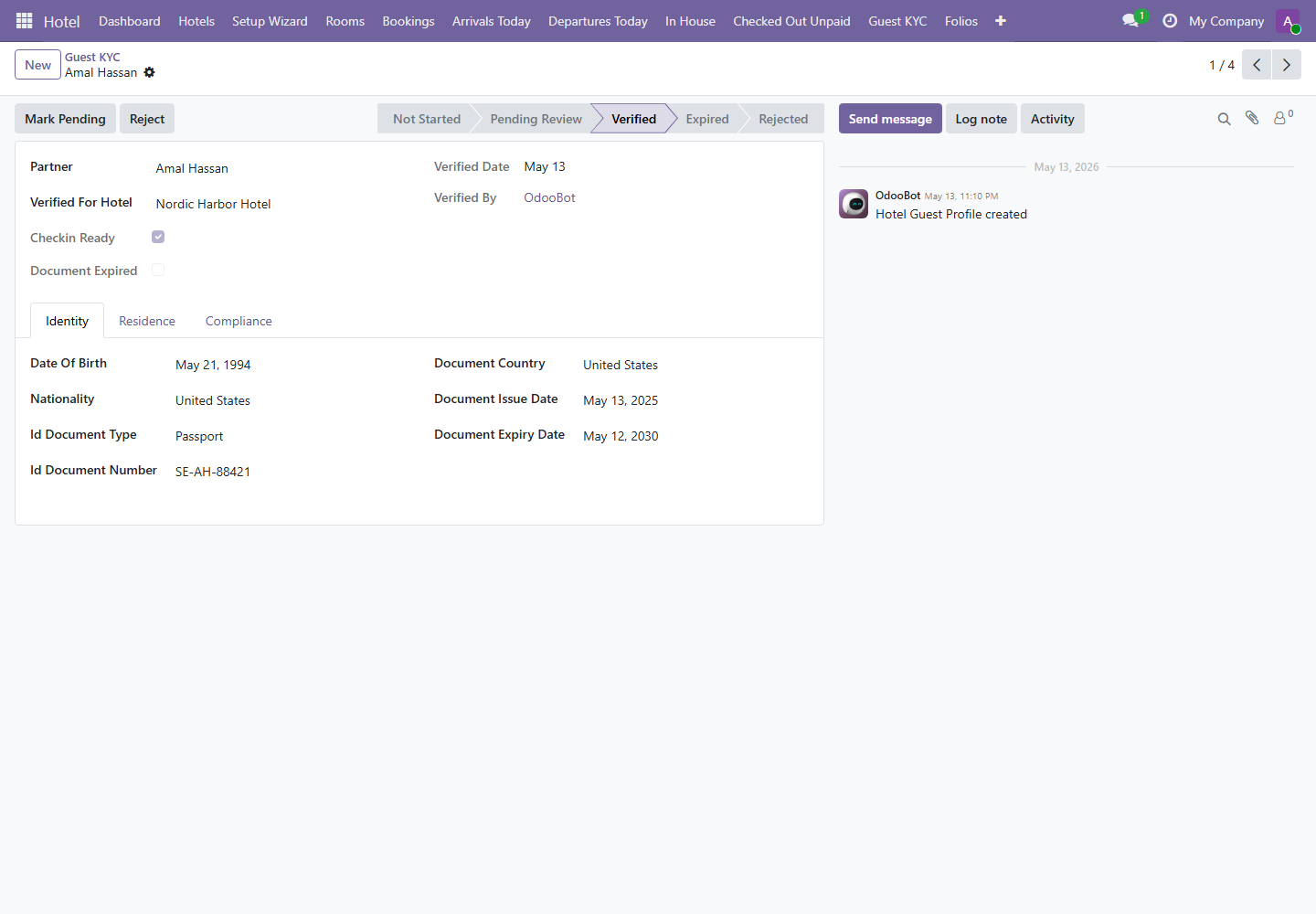
Open Guest KYC from the menu or by using the Guest KYC button on a booking.
The system blocks check-in if the guest does not have a verified, check-in-ready KYC profile. KYC should be completed before arrival whenever possible.
Required KYC Data
- Date of birth.
- Nationality.
- ID document type and number.
- Document country.
- Document expiry date.
- Terms accepted.
- KYC status set to Verified.
Verification Rules
- Do not verify expired documents.
- Do not check in the guest if Checkin Ready is not enabled.
- Use the Compliance tab to find missing fields.
- Reject KYC if the provided identity information is invalid.
5. Check In the Guest
Use fromHotel / Arrivals TodayBooking Form
- Open the guest booking.
- Confirm the booking state is Confirmed.
- Confirm the guest KYC status is Verified and Checkin Ready is enabled.
- Review payment policy and amount due.
- Click Check In.
The booking moves to Checked In, the room becomes occupied, and the guest appears under Hotel / In House.
6. Review Folio and Take Payment
Menu pathHotel / Folios
Open the same billing record directly from the menu or by using the Folio button on a booking.
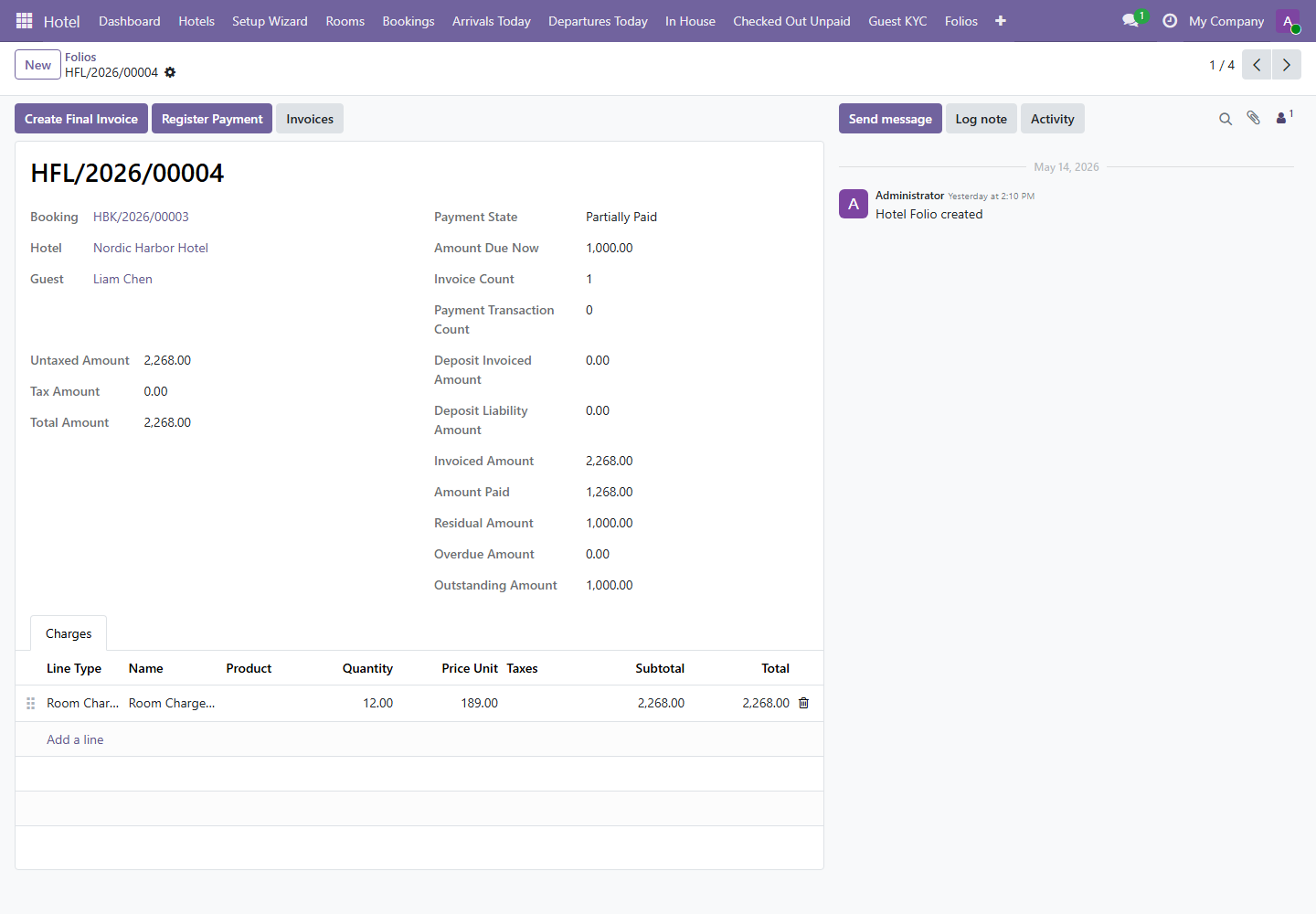
The folio is the operational billing record. It shows stay charges, invoices, payment state, amount paid, residual amount, overdue amount, and outstanding amount.
- Open the folio from the booking or from
Hotel / Folios. - Review Total Amount, Amount Paid, Residual Amount, and Outstanding Amount.
- Create a deposit invoice or final invoice when required by the payment policy.
- Click Register Payment when payment is collected.
- Return to the folio and confirm the payment state after payment is posted.
| Payment State | Meaning | Action |
|---|---|---|
| No Invoice | No invoice has been created yet. | Create deposit or final invoice if payment is required. |
| Not Paid | Invoice exists but no payment is recorded. | Collect payment or document follow-up. |
| Partially Paid | Some payment was collected but balance remains. | Review residual amount before checkout. |
| Paid | The guest balance is settled. | Proceed with checkout if other requirements are complete. |
7. Departures and Checkout
Menu pathHotel / Departures Today
Departures Today should be reviewed before checkout time. It helps reception prepare invoices, payment collection, and housekeeping workload.
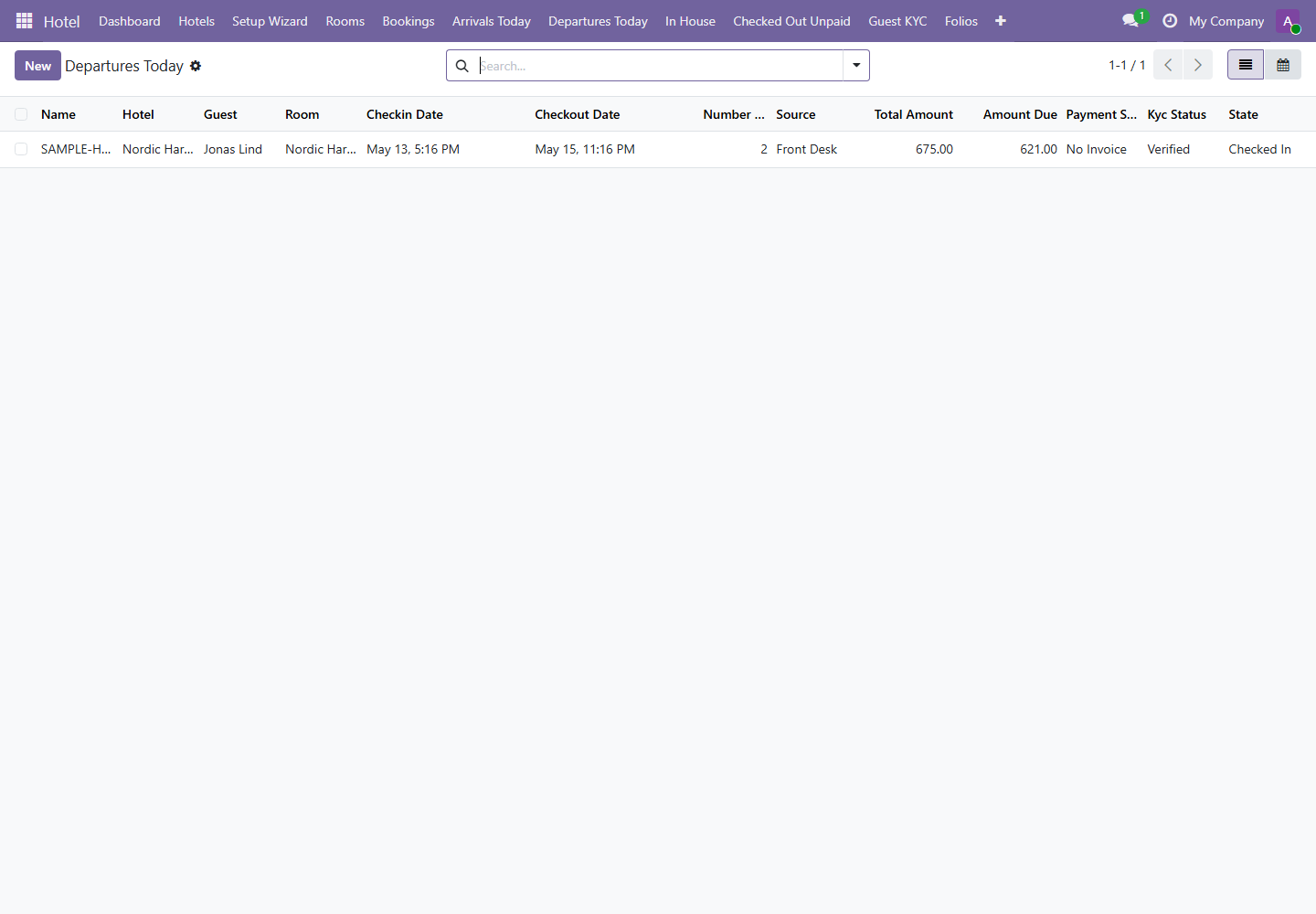
- Open the departing guest booking.
- Open the linked folio and review every charge.
- Create or review the final invoice.
- Register final payment if required.
- Return to the booking and click Check Out.
The booking state becomes Checked Out, the room moves to cleaning, and a housekeeping task is created if no active task already exists.
8. Handle Checked Out Unpaid
Menu pathHotel / Checked Out Unpaid
This screen is an exception list. It shows guests who have already checked out but still have unpaid or partially paid balances.
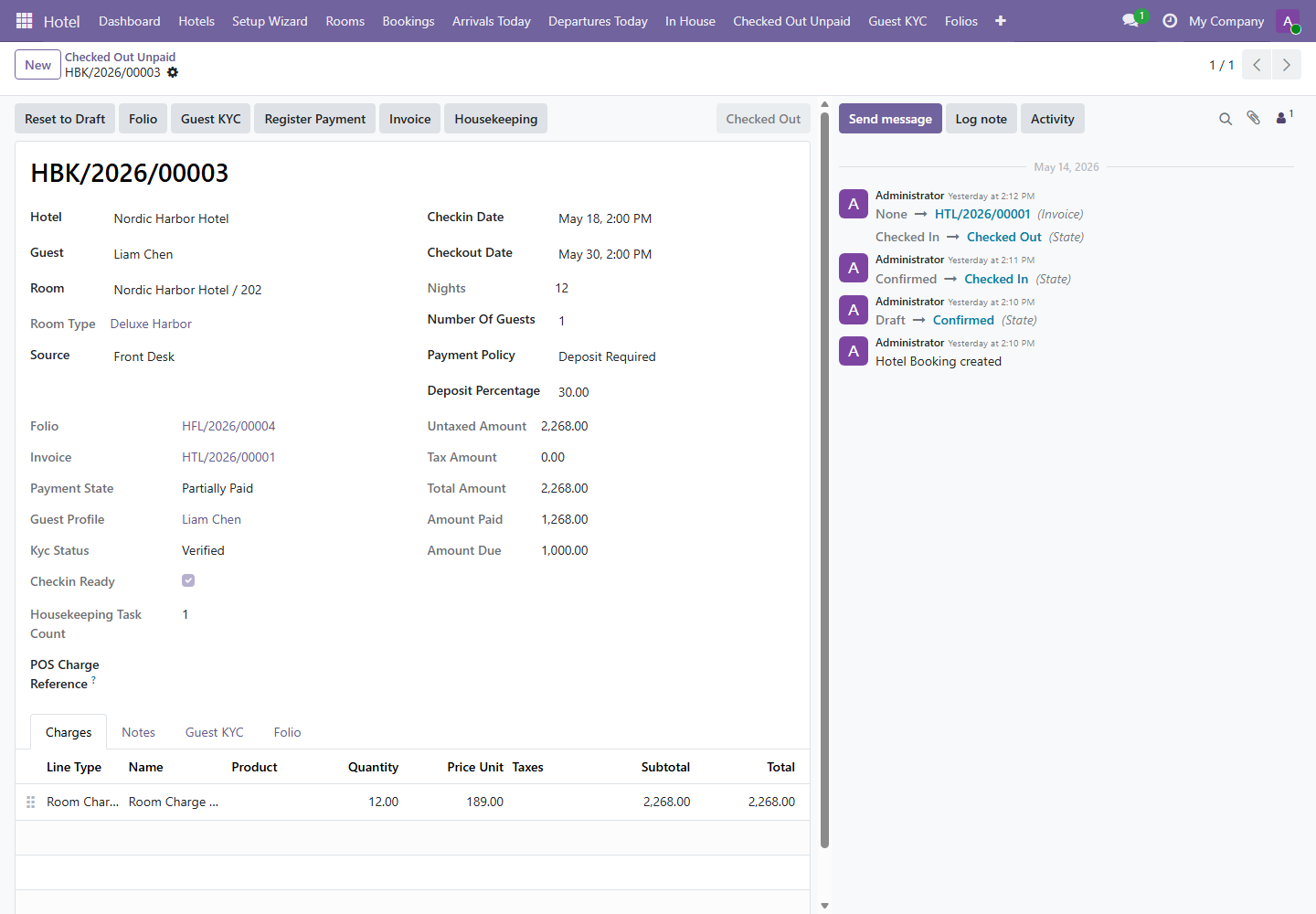
- Open each checked-out unpaid booking.
- Open the folio and invoice.
- Confirm the balance amount and payment state.
- Register payment if collected.
- Add a log note if follow-up is assigned to accounting or management.
Daily Checklist
Common Issues and Corrections
| Issue | Likely Cause | Correction |
|---|---|---|
| Check-in button is blocked. | Booking is not confirmed or KYC is not ready. | Confirm the booking and complete Guest KYC. |
| Room cannot be selected. | Room belongs to another hotel or conflicts with existing booking. | Check hotel, room blocks, maintenance, and overlapping reservations. |
| Guest leaves with balance. | Folio was not settled before checkout. | Use Checked Out Unpaid and assign follow-up. |
| Housekeeping task appears after checkout. | Expected behavior after checkout. | Housekeeping should start and mark the task done when the room is ready. |